
Open the app, and you know what to publish today
The draft is in Word. The images are in another folder. PublishKit brings them together: line up a week or a month of drafts as tasks, add the platform and the publish link. Copy the title, body, keywords, and images separately. Export the publish list from the calendar in one step.

Drafts stay on this PC
Copy, image records, and publish status stay on this computer. Original images stay in your folders. PublishKit does not move or rewrite them.
The extension only talks to this computer
The side panel reaches the desktop app at 127.0.0.1. The port and pairing code are under Settings → Browser extension.
Your accounts stay on each site
PublishKit does not store platform passwords, and it does not log in for you. You review, paste, and publish in the editors on Xiaohongshu, Douyin, and Pinterest.
Put the tasks on the calendar, paste them out, mark them done
Create more than one project, and more than one platform. One piece can have several tasks, and each task keeps its own record.
1. Schedule them as ready
You do not have to retype drafts you already have. Open Schedule import from Sources or Tasks, pick Markdown, Word, or Excel, set a start date and an interval, check the platforms, and this week’s posts are ready.
2. Paste on the site
Open the task and use Copy title, Copy body, Copy keywords, and Copy images. Paste each one into the site’s editor.
3. Mark it published
After you publish, choose Mark published in the side panel and add the real link. The piece and the record are there when you look for them later.
See today’s tasks
What’s due today, and what’s overdue, are there when you open the app. Tomorrow and next week stay in Tasks and the calendar.
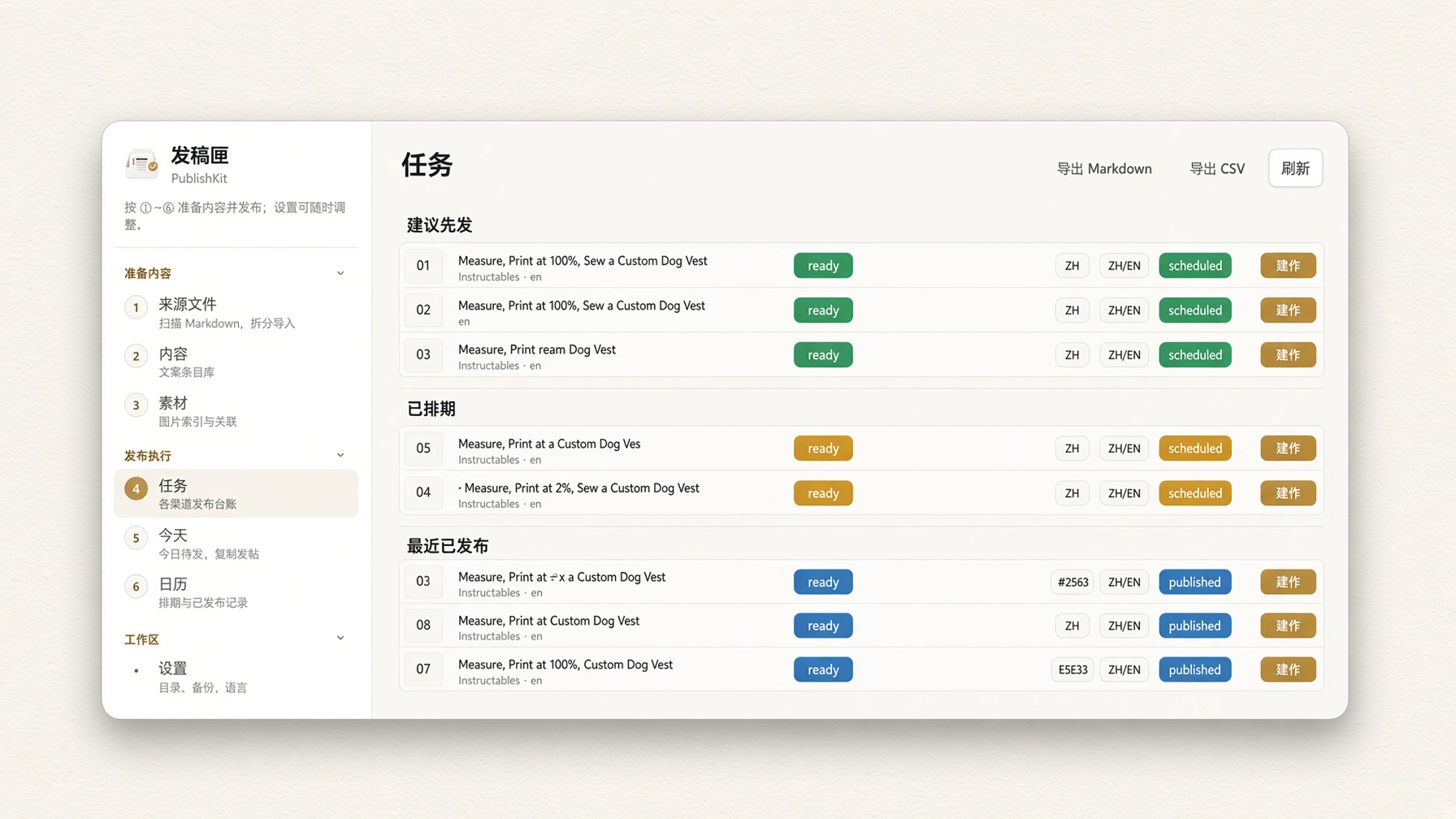
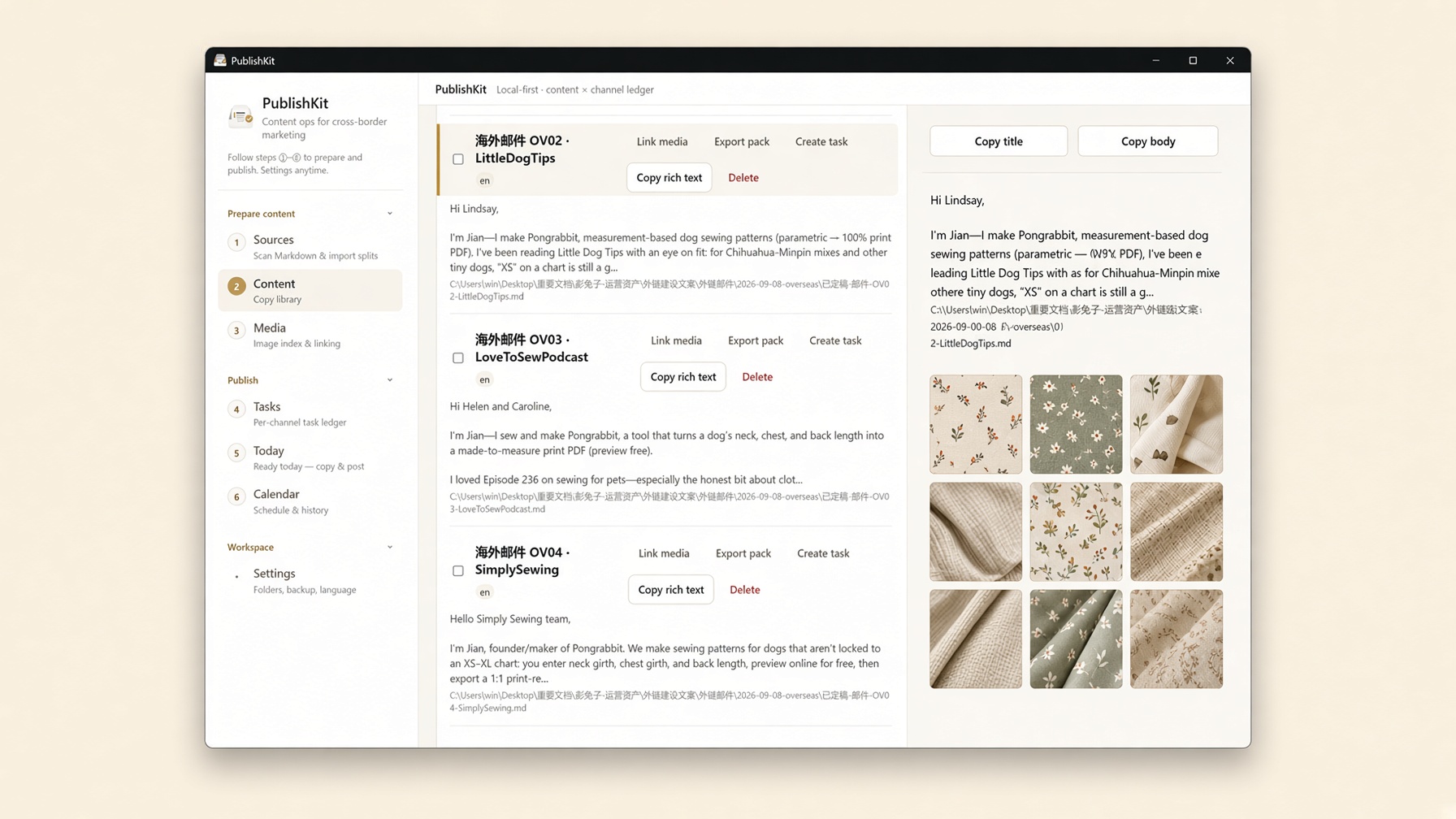
Copy only the part you need
Copy title, Copy body, and Copy keywords are separate buttons. On single-box sites such as Douyin and Weibo, the body can include the topics. On Xiaohongshu and Pinterest, you take them separately.
Open the Chrome extension beside the post
The post is on the left. The draft sits beside it. Copy the title, body, and keywords from the side panel, then add the link there when you’re done.

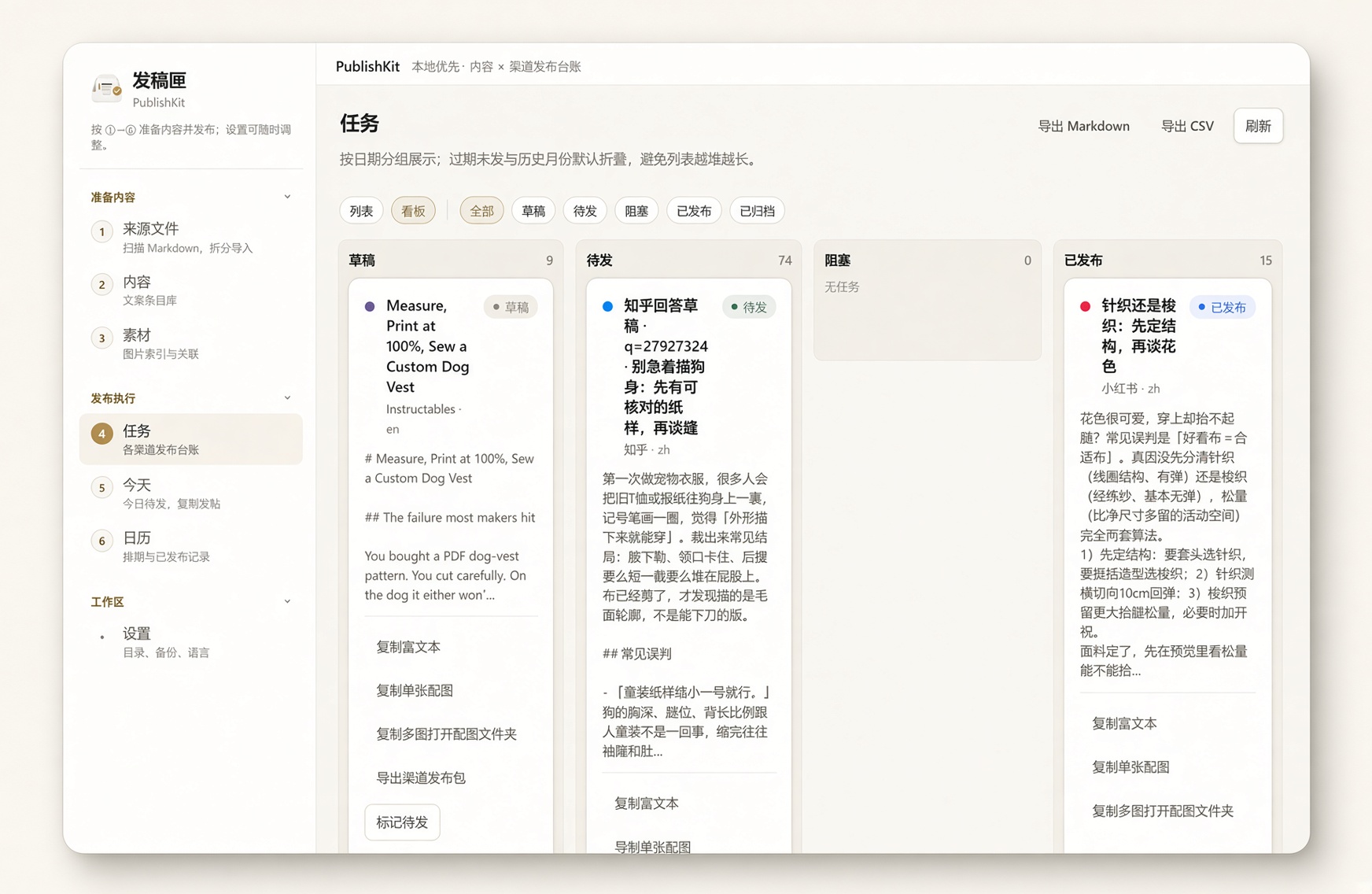
One platform, its own progress
The same piece on Pinterest and Instagram is two tasks. One can be published while the other is still waiting. Schedule import can lay out a month of ready tasks at once.
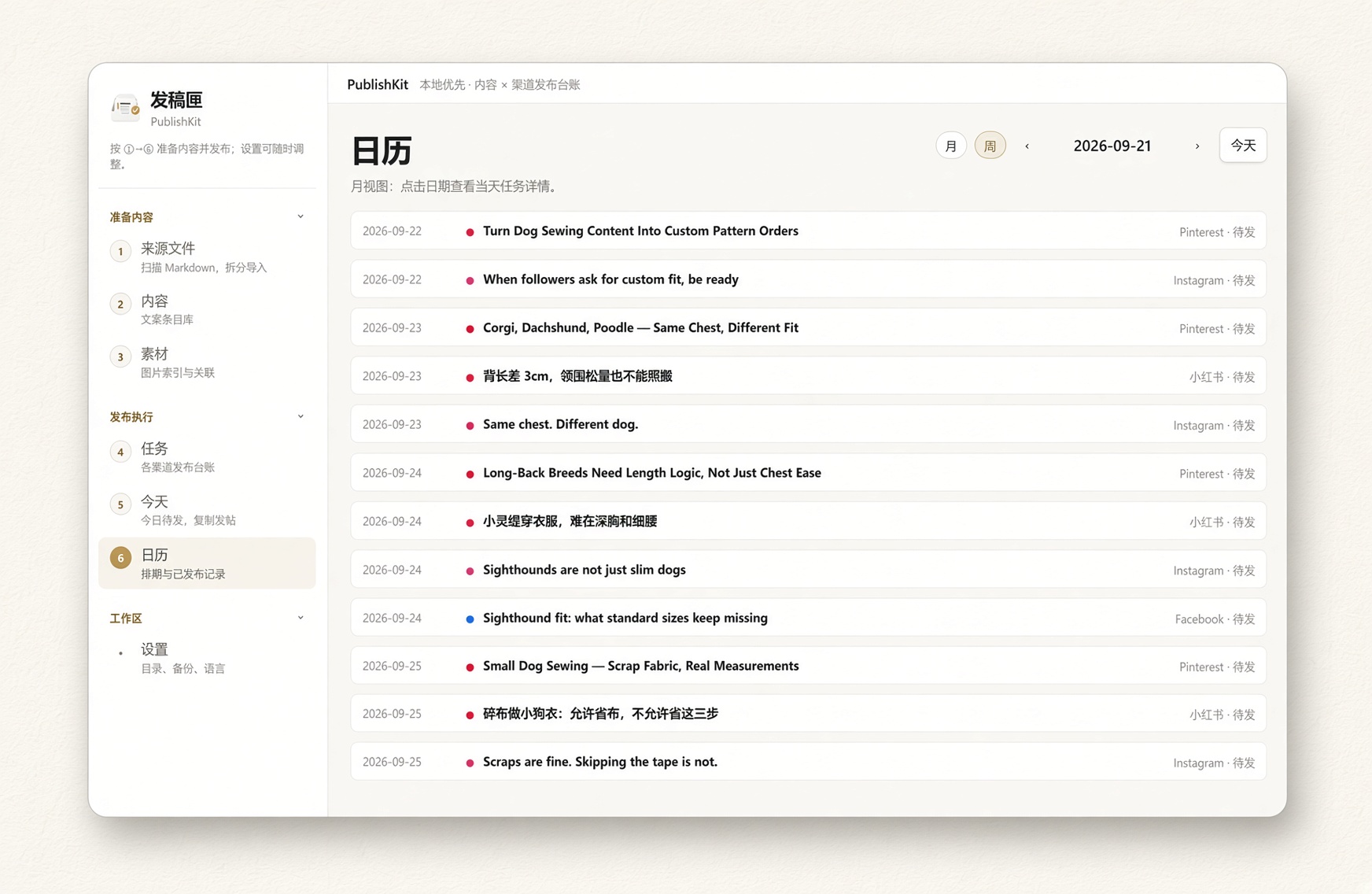
Find what you published, from the calendar
Week and month views show what comes next. Export records by project, dates, and status, and export that stretch of the publish list in one step.
It does not post for you. Posting yourself gets easier.
What We Do
- See what to publish today, with the title, body, keywords, and images ready to copy separately.
- One record per platform: status, date, and link sit on that task.
- Pay once and keep using it. No monthly charge.
What We Don't Do
- It does not store platform passwords.
- It does not bypass platform rules, and it does not post for you.
- It does not charge by the month.
- It does not sell your drafts.
Start free with 50 pieces. $38 buys it once, for life.
The same piece on two platforms still counts as one piece and two tasks. The code starts with PKPRO-. Enter it under Settings → License.
PublishKit Free
$0- check 50 pieces
- check More than one project, each with its own copy folder and image folder
- check Today, tasks, calendar, schedule import, copy, and the extension
PublishKit Pro
One-time- checkNo cap on pieces
- checkEverything in Free is here too
- checkThe code arrives by email after payment
- checkA one-time buffer alternative if you still paste each post yourself.
The code arrives by email as PKPRO- · Enter it under Settings → License
Frequently Asked Questions
A few things people ask about PublishKit.
Start with the next piece you are about to publish
Download it free. 50 pieces are enough to line up this week, publish the posts, and write the links down.
Windows 10/11 (64-bit). If SmartScreen says it protected your PC, choose More info, then Run anyway. The installer is not code-signed; the file is not corrupt. Download for Mac is the Apple silicon dmg (M1 or later). Intel Macs use this dmg. If macOS says the developer cannot be verified, open System Settings → Privacy & Security and choose Open Anyway.